MP3 Player with HTML5. Lesson 2 – Controlling Play, Pause and Stop with Javascript
In the previous section we created an audio element using HTML5 and then controlled it using the built-in controls available through the browser. In most applications, however, you will want the user to have more control over the audio (or video) playback. The Javascript API associated with the audio (and video) element provides a robust set of commands for controlling and monitoring the media stream.
In this chapter, we’re going to move beyond the provided HTML5 controls and start using Javascript to control the audio playback.
If you haven’t used much Javascript before, let me talk a little bit about the language and its usage. First, you will often hear Javascript referred to as a scripting language — not a programming language. While the difference between scripting and programming languages is becoming much less distinct, it is worth mentioning. Javascript is considered a scripting language because it is processed line-by-line in the browser from top to bottom. This is unlike a true programming language, which is interpreted as machine language or (in the case of Java or .Net languages) as a byte code.
While the distinction referenced above may seem like minutiae, it has important ramifications for the scope and performance of the language itself. The first, and perhaps most obvious ramification of the scripting environment, is that the language is dependent on the browser environment to run. Scripting languages also run more slowly than more traditional programming languages.
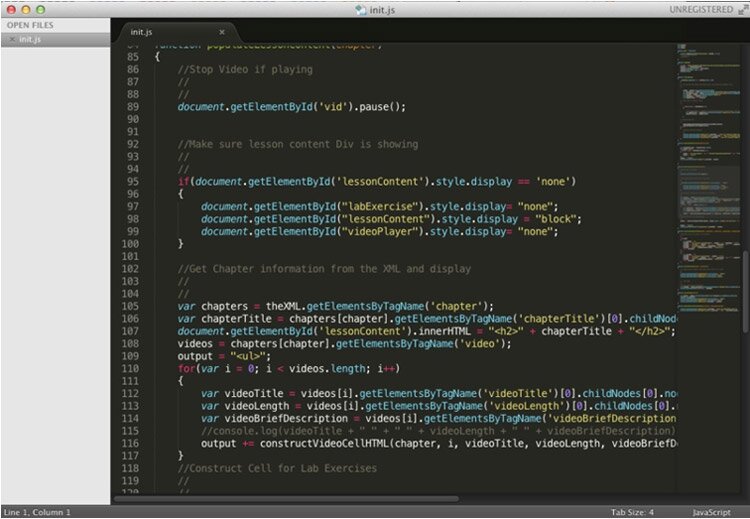
Javascript code viewed in a text editor
Despite what you might perceive as drawbacks of using a scripting language, Javascript is becoming an increasingly important tool in the programmer’s toolkit. Due to the growth of mobile applications, and the need to offload heavy processing from a user’s environment on to a server, the service-oriented architecture became important. Javascript is used to facilitate a service-oriented architecture, as it allows direct communication with a web server.
In our example, we’re going to use Javascript to go beyond the HTML5 embedded player and control the media ourselves.
To get started, we’re going to need to load the example that we created in the previous chapter.
1. Open your text editor.
2. Open the file that you created in the first lesson. If you don’t have the file any longer, type the code as it appears below. Remember to save your music file(s) to your drive in the same folder as your HTML code.
<!DOCTYPE html>
<html>
<head>
        <title>Audio Player</title>
</head>
<body>
        <audio controls="controls">
                <source src="music.mp3" type="audio/mpeg">
                <source src="music.ogg" type="audio/ogg">
        </audio>
</body>
</html>
3. In the <audio> tag, delete the controls="controls" attribute and value. We’re going to be making these controls ourselves using Javascript in this and subsequent lessons.
4. Since the controls will not be visible, we’re going to have to provide some controls to the user. We’ll do this by providing buttons that the user can click. Place your cursor after the closing audio tag and before the closing body tag. You’ll recall that closing tags begin with a forward slash.
5. Add the button code as it appears below:
<button onclick="playMusic()">Play</button><br />
<button onclick="pauseMusic()">Pause</button><br />
<button onclick="stopMusic()">Stop</button><br />
The tag button, as you might guess, creates a visible button on the screen. The text written on the button appears as the content between the opening and closing button tags. The onclick attribute delegates control to a function with the name contained in the value when the button is clicked. When the ‘Play’ button is clicked, control will be delegated to a function called ‘playMusic()’.
I’m sure you’ve also noticed the <br /> tag. This tag creates a line break in the browser display. The forward slash follows that tag name because in this case our <br> tags serve as both opening and closing tags.
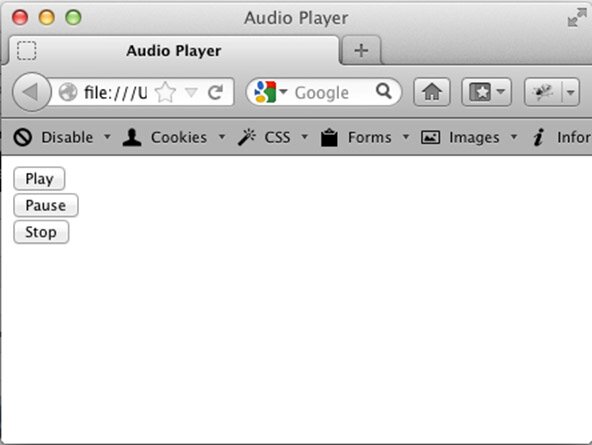
The Play, Pause and Stop buttons as they appear in the Firefox browser
6. Next we need to make a space for our Javascript functions. Generally, I put these either in the head of the file or in a separate, attached document. In this tutorial, I’ll be putting the Javascript in the head section of our document. In actual production work, I would attach a separate file; however, for the purposes of this tutorial, it’s simply more convenient to place the functions in the document head. Next, you’re going to put <script> tags after the <title> element in your HTML. After you have done that, your <head> section should appear like this:
<head>
        <title>Audio Player</title>
        <script>

        </script>
</head>
7. Now we’re going to be working inside the <script> element. Inside the script element, the browser knows to interpret the code as Javascript (not HTML). Inside the script tags, create the signature of the playMusic function. The signature is the skeleton of the function. Write code as follows:
<head>
        <title>Audio Player</title>
        <script>
                function playMusic()
                {

                }
        </script>
</head>
The keyword function indicates that we are declaring the function called playMusic. The curly brackets contain the function code itself—often called the implementation. Now we’re going to add three more functions and declare a reference.
8. Modify the head one more time. Modify the code as follows:
<script>
        var player;

        window.onload = function()
        {

        }

        function playMusic()
        {

        }

        function pauseMusic()
        {

        }

        function stopMusic()
        {

        }
</script>
Double-check your code to make sure you keyed it in correctly.
There are a couple of new elements in this code block. The line that reads ‘var player’ declares a reference to a variable called player. In the next step we’re going to make that refer to the audio element in the HTML. The ‘window.onload=function()’ declares an anonymous function that will be called when the browser loads. This will allow us to run some initialization code. Finally, we added the necessary function signatures for the pauseMusic and stopMusic functions.
9. Now we’re going to implement the functions. Edit your code in the <script> element so it appears as follows:
<script>
        var player;

        window.onload = function()
        {
                player= document.getElementById('player');
        }

        function playMusic()
        {
                player.play();
        }

        function pauseMusic()
        {
                player.pause();
        }

        function stopMusic()
        {
                player.pause();
        }
</script>
We’re also going to need to make a change to the <audio> element itself in the HTML. Where it currently reads <audio>, make the following change:
<audio id="player">
We’ve actually done quite a bit of work here. Let’s first turn our attention to the anonymous function that runs after the ‘window.onload’ event. Where the variable player is declared in the first line of the script, the anonymous function assigns the audio element to this variable. Since the audio element now has the id player, we’re able to ‘get’ it with the getElementById(‘player’) function. If you’re coming from another programming language, it may be helpful to think of the Javascript variable player as a pointer to the audio element object.
In the playMusic, pauseMusic and stopMusic functions, we used the player object to start and pause the music. You may be wondering why we didn’t use the stop command inside the stopMusic function. The explanation is simple—there is no stop command. More on this in a moment.
10. This is an excellent time to test your player. If you don’t have any typos or other errors, when you press Play, your music should play. Both the Pause button and the Stop button will stop the player in its current position. Pressing Play again will cause the song to continue. Now we’ll make a small change, which will allow the Stop button to function as expected.
11. Edit your stopMusic function to appear as follows:
function stopMusic()
{
        player.pause();
        player.currentTime = 0;
}
Test your player again, and you will now notice that the Stop button will cause the song to start over if played again.
The currentTime property allows you to set or read the time elapsed in milliseconds. When we set that to zero, as we do here, we are essentially moving back to the beginning of the audio.
12. Make sure you save and admire your hard work!
Related video course (free)
via Script Tutorials»Script Tutorials | Web Developer Tutorials | HTML5 and CSS3 Tutorials http://www.script-tutorials.com/mp3-player-with-html5-lesson-2/
Comentaris
Publica un comentari a l'entrada